

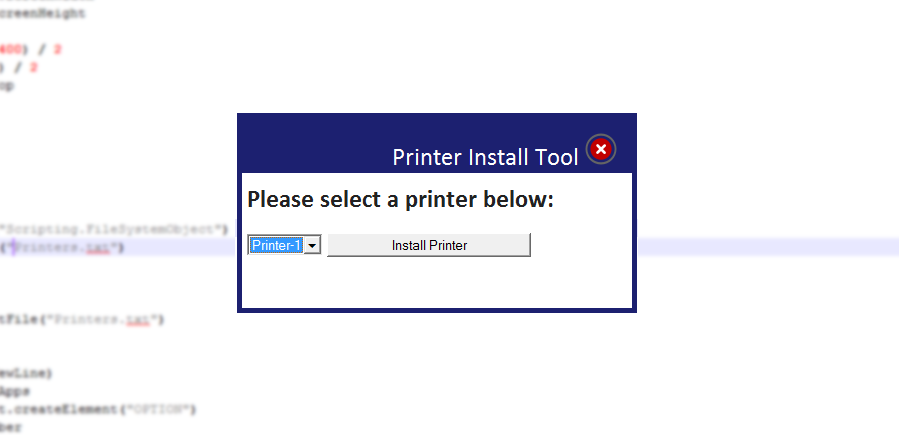
In my current job, we occasionally have a few large hiring classes through out the year. To make it easier for the new hires, I decided to make a Printer Install Tool which will allow anyone to install any of the printers on the floor. This way I am not being requested for a simple task like this. Follow the steps included in this post and you will be able to do the same!
You will need to create the following 4 files:
Printer Install.hta(This is your main file)
printers.txt (This will contain the list of printers that are installed on your print server)
install.bat (This is your batch file that installs the selected printer)
empty.txt (This will have an error message if the HTA can’t load your printer list, or if your printer list is empty)
Below you will find what is inside the 4 files.
Printer Installation HTA Source Code:
<html>
<head>
<title>Printer Install</title>
<meta http-equiv="X-UA-Compatible" content="IE=8"/>
<HTA:APPLICATION
ID="objHTA"
APPLICATIONNAME="Printer Install"
BORDER="none"
INNERBORDER="no"
SCROLL="none"
SELECTION="no"
CAPTION="no"
SYSMENU="no"
WINDOWSTATE="normal"
>
</head>
<STYLE>
body {
margin:0px;
padding:0px;
}
.content {
padding: 60px 10px 10px 10px;
}
.header {
padding-top:10px;
color:#222;
font:25px Calibri;
font-weight:bold;
margin:0px;
}
.notes {
margin:0px;
padding:0px
}
.top{
background-color:#1c2070;
height:60px;
top:0px;
right:0px;
position: fixed;
width:100%;
}
.bottom{
background-color:#1c2070;
height:5px;
bottom:0px;
position: fixed;
width:100%;
left:0px
}
#left, #right {
background: #1c2070;
position: fixed;
top: 0; bottom: 0;
width: 5px;
}
#left {
left: 0;
}
#right {
right: 0;
}
.logo {
float:left;
}
.logo img {
padding-left:5px;
position:absolute;
bottom:5px;
}
.exit {
color:#fff;
font:25px Calibri;
float:right;
padding-right:10px;
padding-top:10px;
}
.exit img {
padding-right:10px;
padding-top:10px;
}
</style>
<script language="VBScript">
On Error Resume Next
Sub Window_Onload
window.resizeTo 400,200
strComputer = "."
Set objWMIService = GetObject("Winmgmts:\\" &amp;amp; strComputer &amp;amp; "\root\cimv2")
Set colItems = objWMIService.ExecQuery("Select * From Win32_DesktopMonitor")
For Each objItem in colItems
intHorizontal = objItem.ScreenWidth
intVertical = objItem.ScreenHeight
Next
intLeft = (intHorizontal - 400) / 2
intTop = (intVertical - 200) / 2
window.moveTo intLeft, intTop
LoadDropDown
End Sub
'* Load Dropdown
Sub LoadDropDown
Set objFS = CreateObject("Scripting.FileSystemObject")
Set objFile = objFS.GetFile("&lt;span style="color: #ff0000;"&gt;\\YOUR DIRECTORY HERE\Printers.txt&lt;/span&gt;")
'* Checking Size
If objFile.Size &amp;gt; 0 Then
'* Loading Printers
Set objFile = objFS.OpenTextFile("&lt;span style="color: #ff0000;"&gt;\\YOUR DIRECTORY HERE\Printers.txt&lt;/span&gt;")
arrApps = objFile.ReadAll
objFile.Close
arrApps = Split(arrApps,vbNewLine)
For Each strNumber in arrApps
Set objOption = Document.createElement("OPTION")
objOption.Text = strNumber
objOption.Value = strNumber
Printers.Add(objOption)
Next
'* Profiles.txt is empty
Else
Set objFile = objFS.OpenTextFile("empty.txt")
arrApps = objFile.ReadAll
objFile.Close
arrApps = Split(arrApps,vbNewLine)
For Each strNumber in arrApps
Set objOption = Document.createElement("OPTION")
objOption.Text = strNumber
objOption.Value = strNumber
Printers.Add(objOption)
Next
End If
End Sub
Sub RunScript
For iselect = 0 to (Printers.Options.Length - 1)
If (Printers.Options(iselect).Selected) Then
strPrinters = strPrinters &amp;amp; Printers.Options(iselect).Value &amp;amp; vbcrlf
End If
Next
'* Confirming selected printer
strAnswer = window.confirm("Are you sure you want to install " &amp;amp; chr(13) &amp;amp; chr(13) &amp;amp; strPrinters )
If strAnswer Then
Const ForWriting = 2
Set objFSO = CreateObject("Scripting.FileSystemObject")
Set objSiteFile = objFSO.CreateTextFile("printer.txt", ForWriting, False)
objSiteFile.Write ""
objSiteFile.Write strPrinters
objSiteFile.Writeline
objSiteFile.Close
Set oWSH = CreateObject("WScript.Shell")
oWsh.Run "install.bat"
else
msgbox "Cancelled"
strPrinters = ""
objSiteFile.Close
End if
End Sub
Sub exitScript
window.close()
End Sub
Sub Pointer
document.body.style.cursor = "hand"
End Sub
Sub DefaultCursor
document.body.style.cursor = "default"
End Sub
</script>
<body>
<div class="top">
<div class="logo"></div>
<div class="exit">Printer Install Tool <span ID="exit" onClick="exitScript" onmouseover="Pointer" onmouseout="DefaultCursor">X</span></div>
</div>
<div id="left"></div>
<div id="right"></div>
<div class="content">
<p class="header">Please select a printer below:</p>
<br>
<select name="Printers" color="#fff" class="auto-style38" ></select>
<input id=runbutton0 class="auto-style5" type="button" value="Install Printer" name="ok_button" onClick="RunScript" style="width: 204px" >
</div>
<div class="bottom"></div>
</body>
</html>
Install.bat Source Code:
SET /p var=<printer.txt

REM Add printer
rundll32 printui.dll,PrintUIEntry /in /n\\KUORIMAGE02\%var%
Empty.txt Contents:
Please close and try again
Printers.txt Contents:
Printer -1
Printer-2
Printer-3
I’m sure there is probably a better way to do this but for now this will do. I hope this helps someone out there!
Matt
yo nice!
frankie falquez
love your site !! thank you for all your help
any update on this tool ??
Jose Espitia
Hi Frankie, I’m glad that you are enjoying the site. Unfortunately I haven’t done anything else with this tool in years. If there is enough demand for it.. I may convert the HTA to a Powershell GUI in the future.
frankie falquez
oh OK perfect thank you so much !